First of all, what is Unity? Unity is the name given to the Ubuntu desktop environment which allows a window-based interaction with the computer, commonly known as a Graphical User Interface (GUI). Lots of background (and foreground) information can be found in chapter 3 “Working with Unity” of the “Ubuntu Unleashed: 2012 Edition book” (see Ubuntu Unleashed 2012 – the install!)
Why do we care whether it is 2d or 3d? The 2d desktop is the default for the U36J and it uses the on-board Intel graphics. There is an NVidia Optimus graphics card installed, but it is not recognised by the installation of Ubuntu 11.10 (or 12.04, but we will come to that later). So why would we want to change to a Unity 3d environment?
- Mainly because it’s the full bells and whistles GUI and it would be a shame not to use as it’s there.
- Everybody likes fancier graphics (3d uses OpenGL) and this allows hardware resource demanding programs (er, games) to use the graphics card. The desktop can theoretically use loads of graphical effects such as wobbling windows, workspace rotating cubes and animations. There are, of course, videos on youtube. However, in a brief play around, I have not been able to get the cube to work satisfactorily, unlike on a desktop machine where everything was great.
- The Optimus graphics card seems to be permanently on, consuming battery, disabling Unity 3d and in general not playing nicely.
- On a personal preference note, Unity 2d’s workspaces are organized in a straight line. Unity 3d allows a second dimension (sorry) to create a rectangular pattern. I can move between workspaces with fewer keys (use Ctrl+Alt and the arrow keys).
- Most importantly: you can now grab the outside of windows to resize them with the mouse! I find it quite painful to locate what seems like an individual pixel column or row and click without disturbing the position etc. Unity 3d has an option to set up a “margin for error” around the borders of the window. This is worth the installation effort by itself.
Here is an example of the Unity 2d desktop on Ubuntu 11.10. The mouse is exactly in the window edge grabbing position but the screen print utility has changed its icon back to the normal pointer:
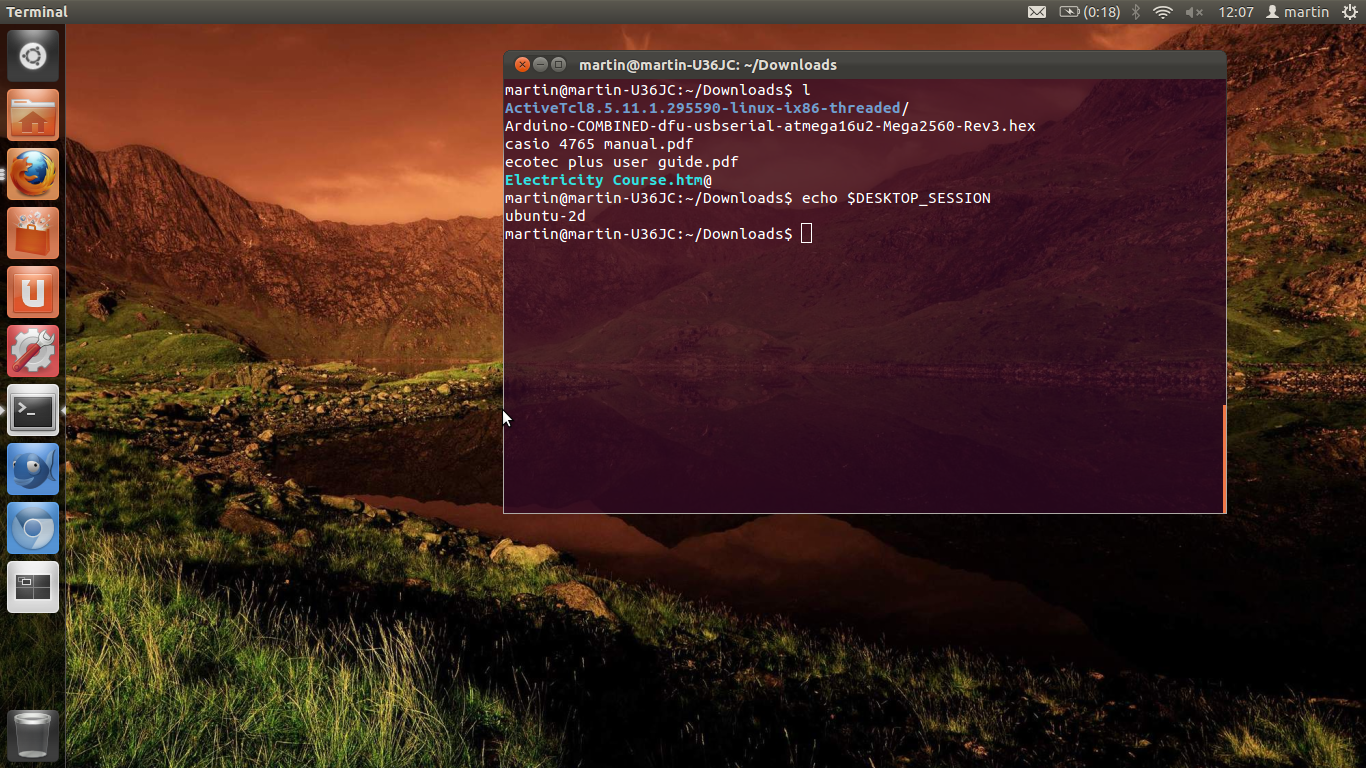
This also shows the echo $DESKTOP_SESSION command to show whether you have 2d (as above) or ubuntu when using 3d. See am-i-using-unity-or-unity-2d for more info.
So now you’re sold, you’ve got to have 3d, how do you go about it?
There is some Ubuntu documentation on Asus U36JC1 configuration. This covers:
- The video driver (installing Bumblebee)
- Hard drive power management
- The boot splash screen
- USB 3.0
Firstly, we will cover the main point of this article, the video driver. After trying a number of different approaches, here how I got it to work. This is all thanks to the great work of the Bumblebee project that allows the use of NVidia Optimus technology with Linux. It needs some NVidia drivers, which can be loaded by the following commands:
sudo apt-add-repository ppa:ubuntu-x-swat/x-updates

sudo apt-get update

sudo apt-get install nvidia-current
Now, when you use dpkg --get-selections | grep nvidia, you should see entries for common, current and settings. Beforehand it should have showed nothing – unless these were already installed. This might have been done by using the ‘Restricted Drivers Installation’ message that sometimes popped up on after booting up the system, but I didn’t try it. Ok, on to bumblebee:
sudo apt-add-repository ppa:bumblebee/stable

sudo apt-get update

sudo apt-get install bumblebee bumblebee-nvidia
Now reboot the system and now should be in unity 3d! Controlling options are given by the compiz-config utility, which may need to be installed if you don’t have it already (sudo apt-get install compiz-config-settings-manager).

Again, the mouse is grabbing the window but the screen print utility has changed the cursor. You can see that the position of the cursor is now much further outside of the window than before. In the main window, I am enabling the desktop cube, which caused Unity and then Ubuntu to crash when I foolishly accepted the request to disable the desktop switcher.
Oh no! Unity has disappeared
One problem I had was booting into Ubuntu and not getting the Unity desktop. This just showed a blank screen with a background but no title bar or launcher. Workspace switching was not allowed, but applications could still be launched via keyboard shortcuts, so a terminal could be fired off by Alt+t. Here are some useful commands if you get yourself into this situation:
firefox & |
This initiates the browser |
sudo shutdown -P now |
When all else fails, turn the system off |
sudo unity --reset |
A great command; when you lose Unity, this can often get it back |
The cause of the problem was not installing the NVidia drivers before Bumblebee. Sounds obvious in retrospect, but I didn’t know there was anything there that needed installing!
Results
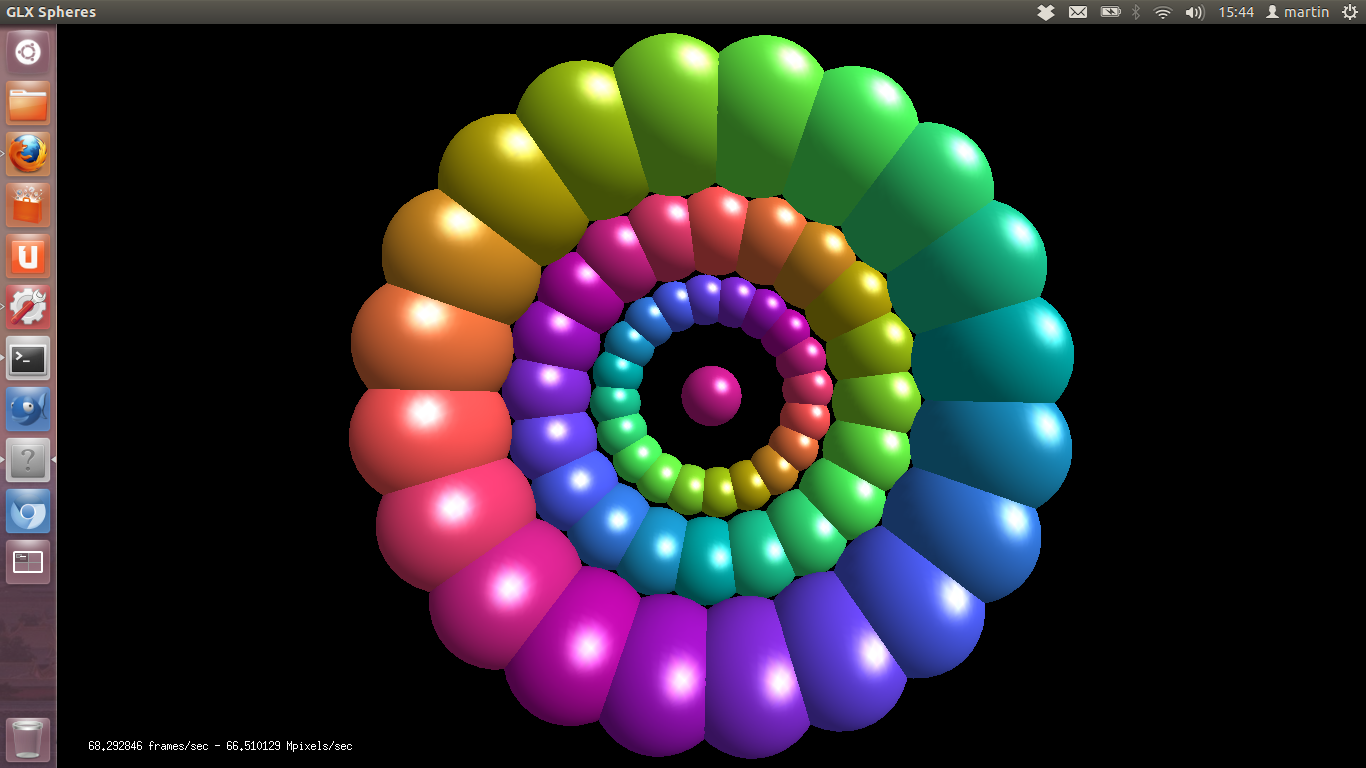
The utility glxspheres can be run directly via the on-board graphics, which gives an average of 20 fps, or by optirun glxspheres to run via the graphics card, with a quite variable output between 62 and 92 fps full screen. In general, optirun should be used to run any program that needs the graphics card. Glxspheres looks quite nice:
Other Items
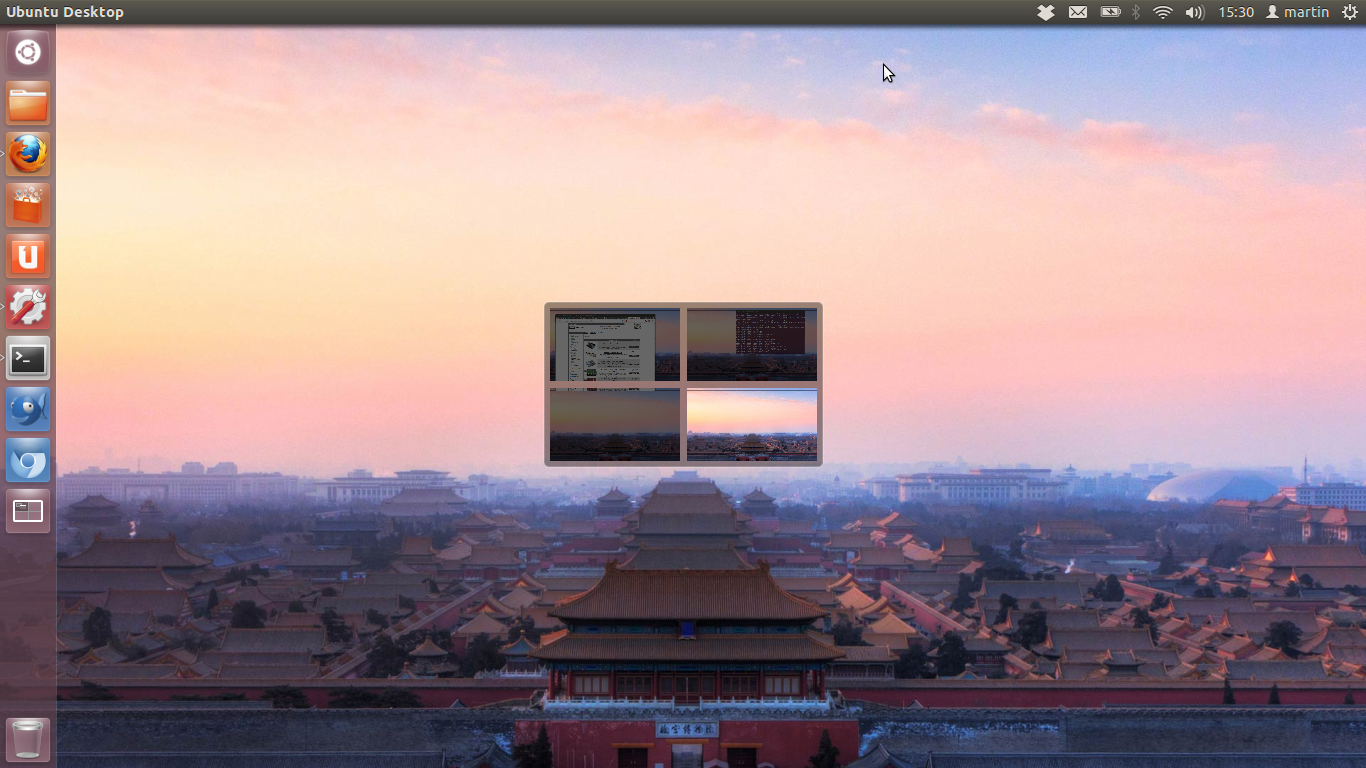
The upgrade to Precise Pangolin, Ubuntu 12.04 Long Term Support (LTS) is now available – the upgrade is done in place and is pretty well painless. It took a bit of time and after a while firefox stopped working properly so I just left the system alone until it completed. There was one configuration question. Here is a shot of Ubuntu 12.04 using Unity 3d and the workspace switcher in 2 x 2 configuration:
The other items in the Ubuntu wiki U36J list were also attempted with various degrees of success:
- Hard drive power management. This is for when on battery power and it avoids excessive disk head movement, increasing battery life and decreasing disk wear. It seems to work with a reported battery life increase from around 3 hours to 6. This is just the figure at the top of the screen so isn’t very scientific as it often seems to approximate a random number generator. As far as I understand this, the battery life also benefits from the Optimus card being switched off by Bumblebee when not needed. Using the laptop a bit via the battery has shown it seems to consume less power but I’m not 100% convinced by the measuring. BTW, this includes turning off bluetooth as that is also a vampiric battery sucker. 12.04 seems to be able to have this stick so I don’t have to do it on each login, yay!
- The boot splash screen. This did not work at all as the file / directory could not be found. I was not fussed.
- USB 3.0. The changes were accepted, I did not check if anything had been achieved.
Here are some instructions  to enable a desktop cube effect, which I did manage to get working. However, there was a flicker after the rotate and an error message kept popping up so I reverted to the default Wall setting.
Thanks for reading and good luck with any of your 3d experiments. If anyone has some good 3d setups for compiz-config on this hardware – please let me know. Also if anyone has more information on exactly what Bumblebee is doing to the card in relation to Unity 3d (for example always on, on when necessary, always off), it would be great to know as well.
Notes:
1 My laptop says it is an U36J on the front right sticker below the keyboard, but the actual model is U36JC as shown on the sticker underneath – the difference seems to be one is a model identifier and the other, a version of the model.


Luis Ferreira
/ October 20, 2012I could not get this to work on a ASUS N76VZ. Unity starts up in 2D every time. But thanks for your article anyway!
simon
/ October 4, 2013great write up! i know this was from last year but can i ask – have you had any success with the HDMI on your laptop and a second screen? i’ve tried all manner of drivers and settings with lubuntu on my u36jc but can’t get the HDMI working 😦
mdhalien
/ October 15, 2013Hi Simon,
I tried this out this morning and it seemed to work OK after a while. I’m using Ubuntu 13.04 now with the standard unity desktop. I had problems booting with the screen plugged in as it gave me a screen resolution check box to fill in in tty8, but no input device was working. What was OK was plugging in the HDMI cable once the system had booted.